
User guide · Customer
Raising a request from the portal
You will find the Fulfilra section on your service desk portal, raise a request, and follow it to the end.
1. Find it
Open your service desk portal the way you always do. Below the welcome message, above the service desk's own list of request types, there is a Fulfilra section.
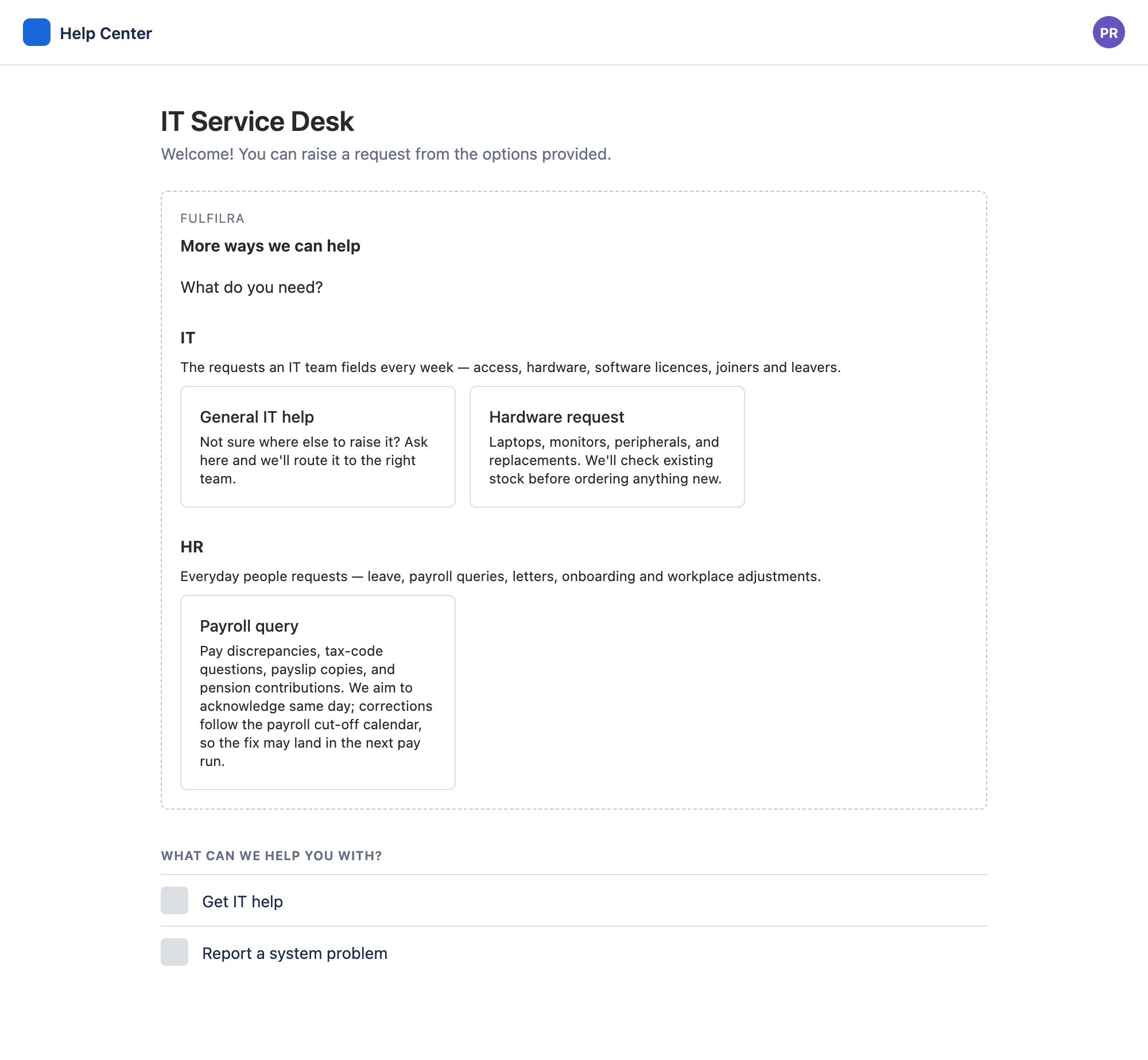
It lists the request types your service desk has chosen to publish to the portal, grouped under headings. That is usually fewer than the full catalog the service desk works from — plenty of forms are written for staff and stay there.
Nothing there? Then nothing has been published for customers yet, and the section is not drawn at all rather than showing an empty box. Ask your service desk, and use their own request types meanwhile.
2. Raise it
Pick a type, answer the form, press Submit request. Required fields are marked with an asterisk.
You get a reference back — REQ-51 or similar. Quote it if you talk to anyone about the request. There is nothing else to keep.
3. Follow it
The My requests page of the portal carries a second Fulfilra section: your own requests, newest first, with their status.
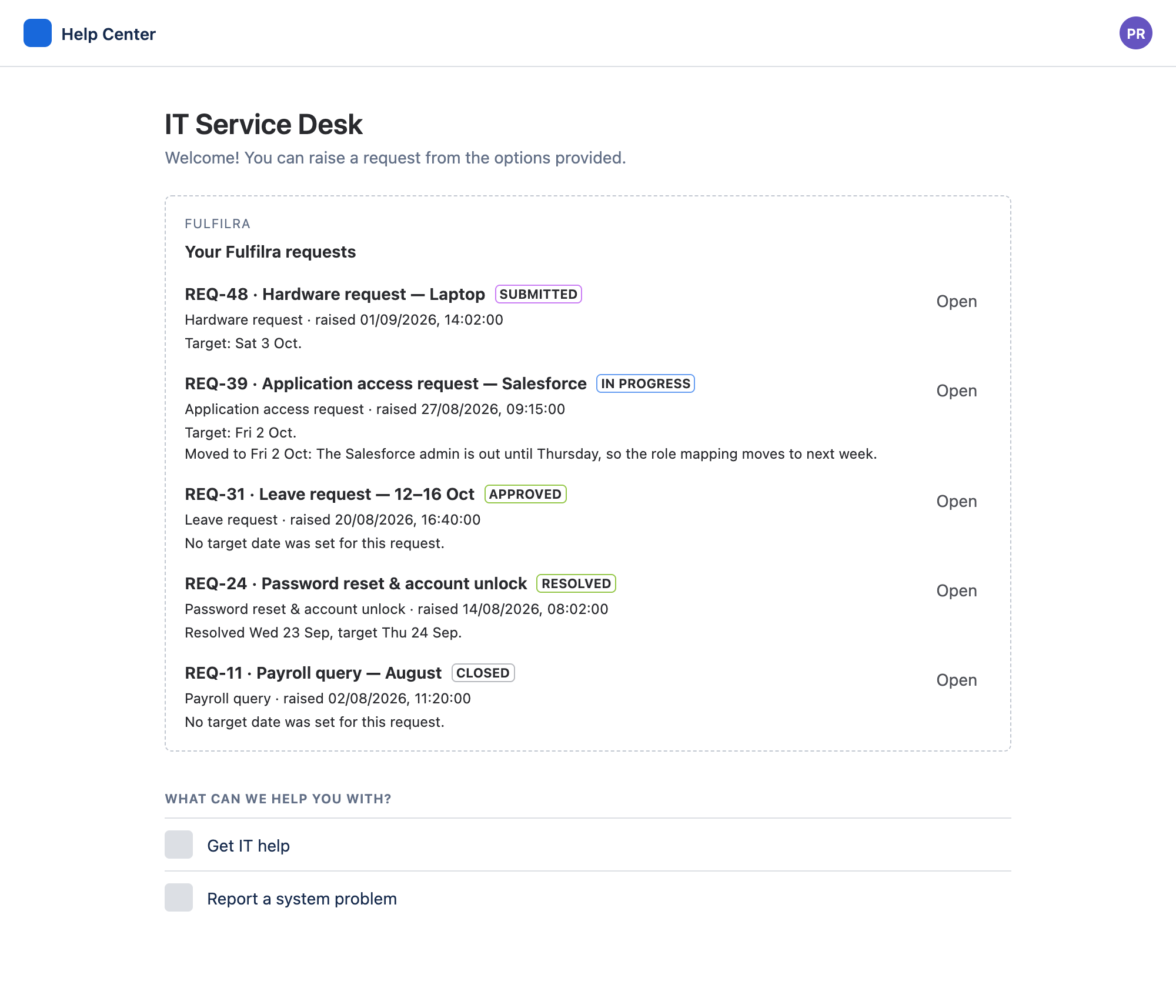
Each request also says when to expect it: a target date, “once approved”, or “No target date was set for this request”. If the service desk moves the date, the new date and their reason appear right there — the portal is the only place you will see that.
Open one to see what you asked for, where it has got to, and the conversation with the service desk. Reply in the box at the bottom — that reaches the person handling it, and their answer appears in the same place.
| Status | What is happening |
|---|---|
| Submitted | Recorded, waiting for somebody to pick it up |
| Pending approval | Waiting on somebody to say yes or no |
| Approved | Approved, waiting for work to start |
| Rejected | Refused. The reason is on the request |
| In progress | Somebody is working on it |
| Waiting on information from customer | They need something from you. Open it and reply |
| Resolved | Done, as far as the service desk is concerned |
| Closed | Finished |
4. Where to look for news
Check the portal. Anything the service desk says to you appears on the request, in the conversation.
Depending on how your service desk is set up, you may get no email about a Fulfilra request at all. If you are waiting on something, come back and look rather than waiting for a message that may never arrive.
Quick answers
Can I see my colleagues' requests?
No. You see the ones you raised, and nothing else.
Can I attach a file?
Not to a Fulfilra request. Say so in the request and the person handling it will tell you where to send it.
Some of what the service desk writes is not shown to me.
Correct. Notes between the people doing the work stay with them. Anything meant for you is in the conversation on your request.
I have a Jira licence too.
Then you also have the full app in Jira's Apps menu, with an inbox and everything you have raised: see the requester guide.
Something looks broken.
Tell your service desk, and mention which portal you were on. The Fulfilra section is an app their administrator controls.